E-Mail Signature Creator
This page will create a formatted signature to put into your email. Complete the form below and click "Create". More directions will be provided after.
How to Add Signature to Outlook
- Select the signature created above:
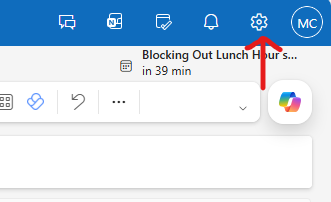
- In Outlook, click the "Gear" icon in the top-right of the page to open your "Settings" window.
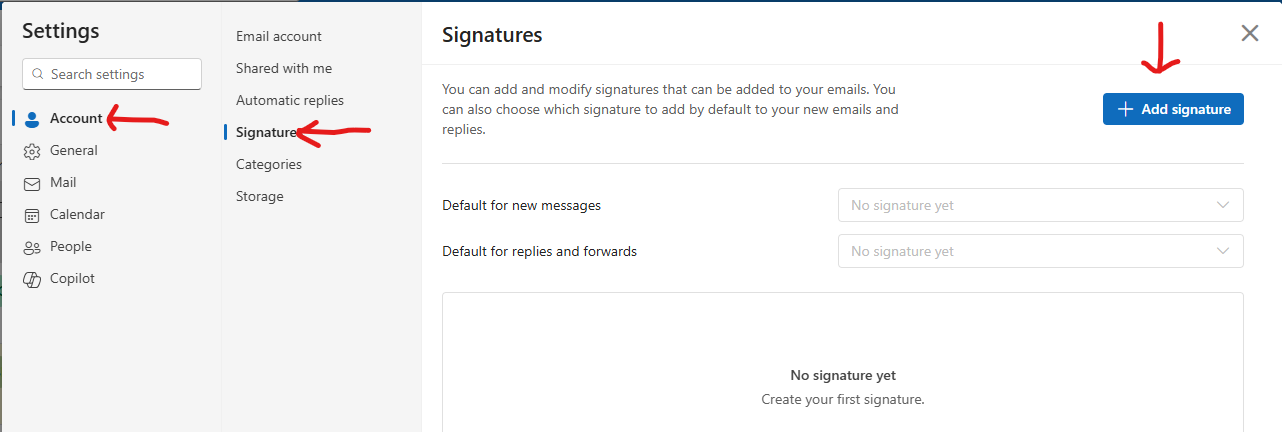
- On the "Account" tab of the Settings page, choose the "Signatures" option from the middle menu and click the "Add Signature" button.
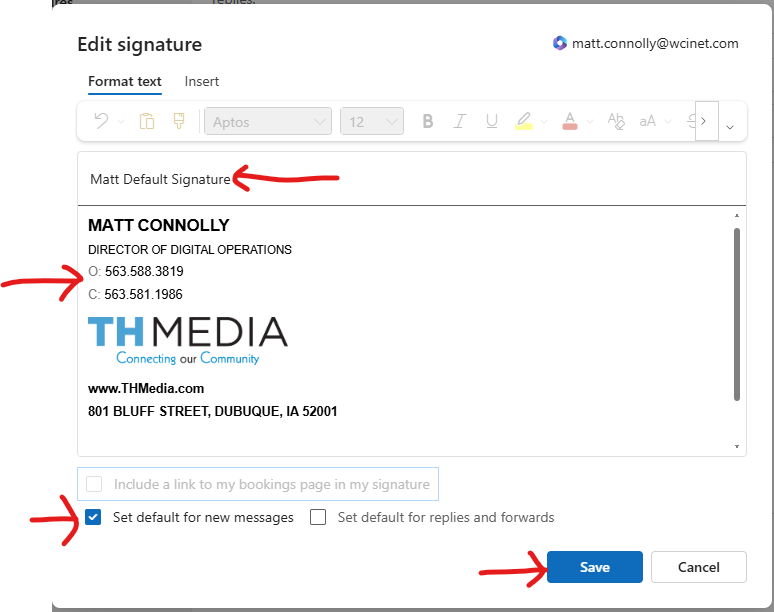
- Add a name for the signature and paste your new signature into the lower window (Ctrl + v).
- Click the checkbox to set this as the "default for new messages" and click the "Save" button.